
Ambra Library
Your EPUB books, together in Chrome.
Open your Library
- From Chrome: click the Extensions button (the puzzle-piece icon) beside the address bar and choose Ambra EPUB Reader. Pin Ambra there if you’d like to open it directly from Chrome’s toolbar.
- While reading: reveal the reader toolbar and click Library, next to Contents.
For more room, choose Open library in new tab.
Add a book from your device
Choose Import book and select your EPUB files. If an import window opens, choose Choose EPUB files….
Tip: select several books at once, or drag EPUB files into the Library tab or import window.
Find new books on the web
Choose Find books for links to places to get EPUBs:
- Standard Ebooks: choose Advanced epub for carefully formatted classics.
- Project Gutenberg: choose an EPUB or EPUB3 download.
- ReadBeyond: choose Download for a read-along book with recorded narration, rather than the browser-based Read+Listen option.
- eBooks.com: look for a DRM-free EPUB edition to buy and download.
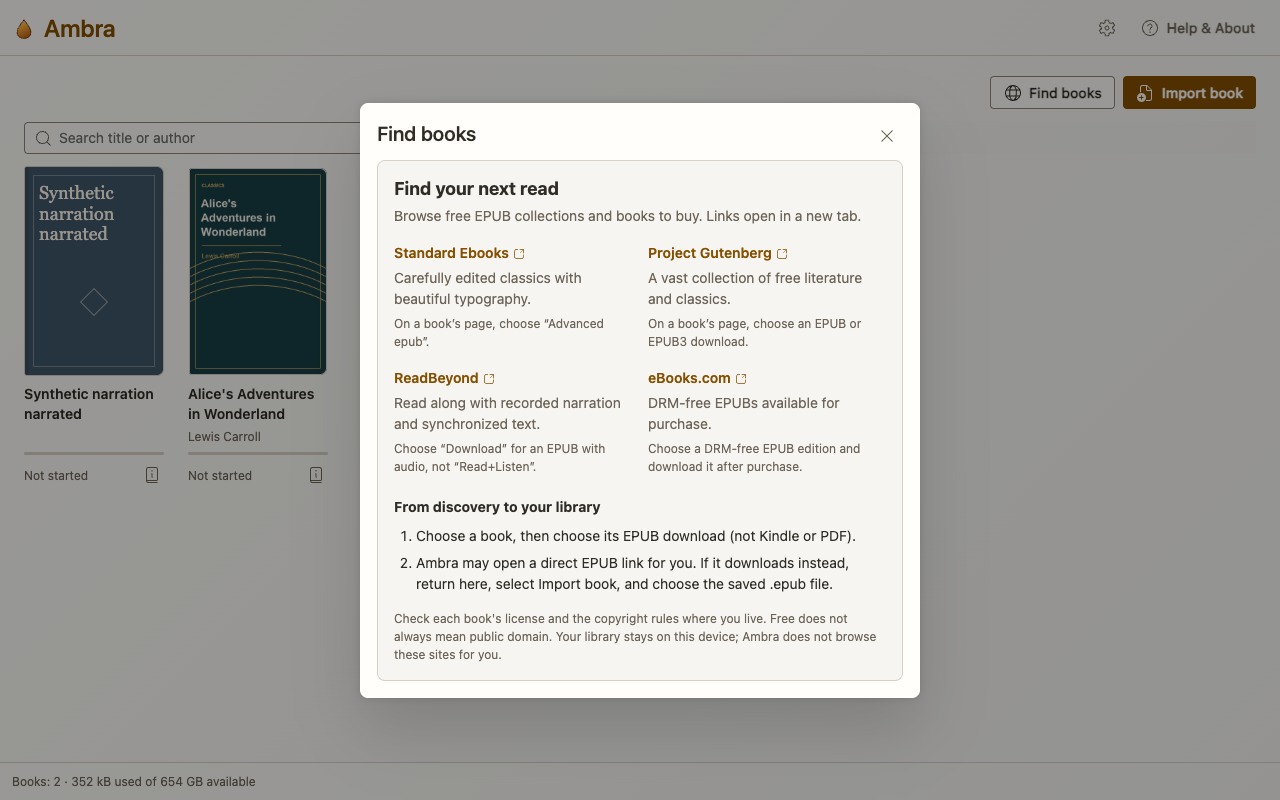
Ambra can add EPUB downloads directly to your Library. If a download doesn’t import automatically, save the file to your device and use Import book.
A few book-finding tips
- Choose EPUB, not PDF or Kindle formats.
- Check for DRM-free before buying; Ambra cannot open DRM-protected books.
- Importing the same EPUB again shows Already in your library without replacing your reading position or notes.
- Keep your original EPUB files as backups. Your Library is stored in your Chrome profile, not synced to a cloud account.
Check book details
Open Book details for a description and Publication details for rights and accessibility information. Choose EPUB Inspector to explore the book’s source, files, and metadata.
Remove from library is at the bottom of Book details. Removing a book also removes its saved reading position and annotations, but leaves the original EPUB on your device unchanged.